
Let’s be honest: If you own an iPhone, you know the sudden panic that sets in when you are texting someone, and out of nowhere, your usual vibrant blue text bubble switches to a bright green one.
Instantly, your mind starts racing with questions:
- Did my Wi-Fi just drop out?
- Is my messaging app broken?
- Wait… did they actually block me?
If you find yourself searching “why is my iMessage green,” you are definitely not alone. This single color shift is one of the most widely misunderstood features in the Apple ecosystem. While it is easy to assume the worst (like being blocked), the reality is usually a lot less dramatic and entirely technical.
In this comprehensive, AEO-optimized (Answer Engine Optimization) guide, we will break down exactly why your iPhone messages change color, what it means for your privacy and media quality, how to know if you’ve been blocked, and the exact steps to get your blue bubbles back.
Quick Answer (AEO / AI Overview Summary)
The Short Answer:
When your iPhone message turns green, it simply means the text was routed as a standard SMS/MMS through your cellular carrier rather than over Apple’s encrypted internet-based iMessage network.The top reasons this happens include:
- The recipient is using an Android device.
- You or the recipient have no active internet connection (Wi-Fi or Cellular Data).
- iMessage is accidentally toggled off in your iPhone settings.
- The recipient’s phone is powered off or in Airplane Mode.
- You have been blocked (though this is only one of many possibilities).
The Core Difference: Blue Bubbles vs. Green Bubbles
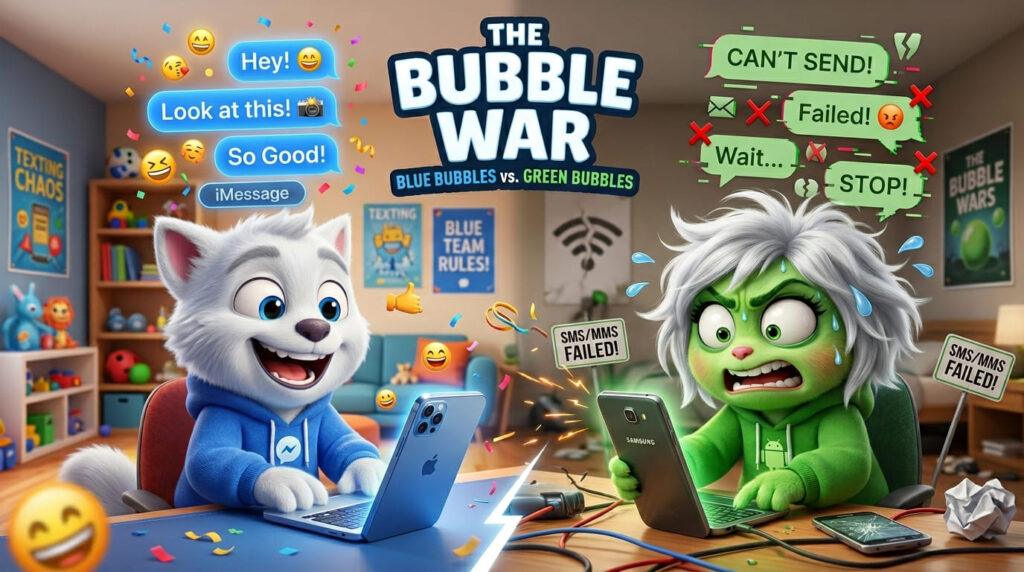
To understand why your messages change color, you first need to understand how your iPhone processes communication. Apple devices seamlessly switch between two entirely different communication protocols depending on the situation.
🔵 Blue Bubbles (iMessage Protocol)
When your message is blue, your iPhone is utilizing iMessage. This is Apple’s proprietary, internet-based communication service.
- How it sends: Uses Wi-Fi or mobile data (4G/5G).
- Security: Features full end-to-end encryption. No one, not even Apple or your phone carrier, can read your texts.
- Exclusive Features: Supports high-definition photos and videos, typing indicators (the three little dots), read receipts, inline replies, message editing, un-sending, and tapback reactions.
- Compatibility: Only works between Apple devices (iPhone, iPad, Mac, Apple Watch).
🟢 Green Bubbles (SMS / MMS Protocol)
When your message turns green, your phone has fallen back on SMS (Short Message Service) or MMS (Multimedia Messaging Service). This is the universal, decades-old standard used by mobile carriers worldwide.
- How it sends: Routed through your cellular carrier’s voice/text network towers.
- Security: Not end-to-end encrypted. Your carrier can technically see the contents of these messages.
- Exclusive Features: Extremely limited. No typing indicators, no guaranteed read receipts, heavily compressed (blurry) photos/videos, and no option to edit or un-send texts.
- Compatibility: Works on literally any mobile phone, from the newest Android flagship to a 20-year-old flip phone.
9 Top Reasons Why Your iMessage is Green
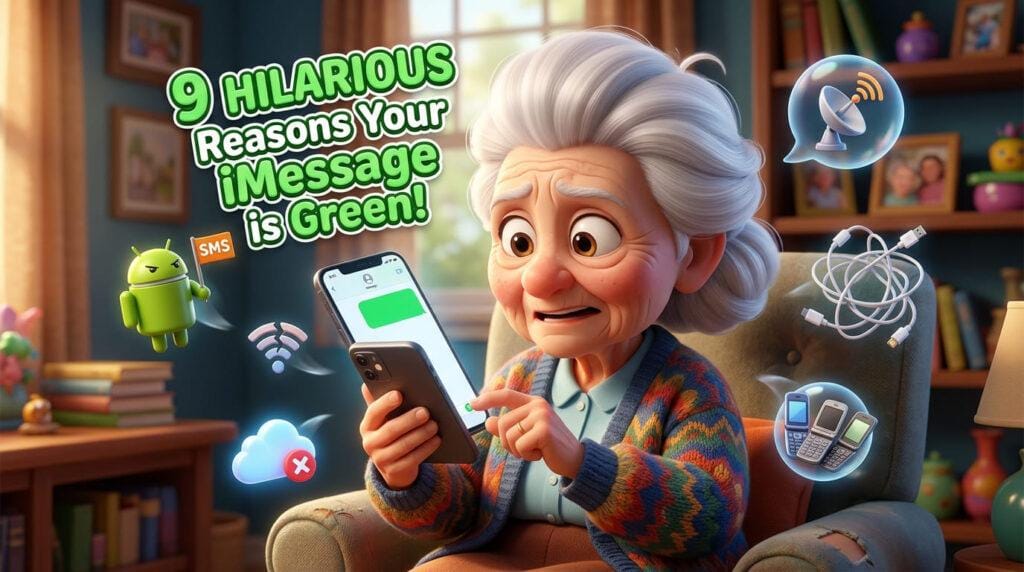
If you are currently staring at your screen wondering, “why is my iMessage green right now?” look through this detailed checklist. One of these nine scenarios is the culprit.
1. You Are Texting an Android User
This is the most common reason by far. Apple’s iMessage servers only communicate with other Apple hardware. If you type in a phone number belonging to a Google Pixel, Samsung Galaxy, or Motorola device, your iPhone instantly recognizes that the recipient cannot receive an iMessage. It automatically defaults to a green SMS bubble so the text can actually be delivered.
2. You Have Lost Your Internet Connection
Because iMessage relies entirely on the internet, dropping your connection will break the service. If you are driving through a dead zone, stuck in a subway tunnel, or connected to a broken public Wi-Fi network, your iPhone will realize it cannot reach Apple’s servers. To ensure your message still gets through, it pushes the text out via standard cellular towers as a green SMS.
3. The Recipient Has No Internet Connection
Communication is a two-way street. Even if you are sitting at home with a flawless gigabit Wi-Fi connection, the message won’t send as blue if the recipient is disconnected from the internet. If their phone is in deep sleep, out of data, or out of range of Wi-Fi/Cellular data, your phone will eventually convert the pending blue message to a green SMS to force delivery.
4. iMessage is Accidentally Toggled Off
Sometimes, software updates, carrier settings resets, or simple accidental taps inside the Settings app can disable iMessage entirely. If the feature is turned off on your device, every single message you send—even to other iPhone owners—will show up as green.
5. The Recipient’s Phone is Powered Off or in Airplane Mode
If your friend’s iPhone has a dead battery, or if they have enabled Airplane Mode during a flight, they are completely disconnected from Apple’s push notification network. When you attempt to text them, the iMessage will hang for a moment before your phone decides to send it as a standard green text, waiting on their carrier’s servers until they power the phone back on.
6. “Send as SMS” is Enabled in Your Settings
Tucked away in your iPhone’s message settings is a feature called “Send as SMS.” When activated, this tells your iPhone: “If iMessage fails to deliver after a few minutes, don’t just leave it pending—convert it to a green text and send it through my carrier.” This is a brilliant fallback feature, but it often causes sudden color shifts that confuse users.
7. Apple’s iMessage Servers are Experiencing an Outage
While highly reliable, Apple’s iCloud and iMessage servers occasionally experience global or regional downtime. If Apple’s system goes down, millions of iPhones temporarily lose the ability to verify iMessage contacts, resulting in a sudden, widespread wave of green text bubbles.
8. The Recipient Switched from iPhone to Android
If you have been chatting with someone via blue bubbles for years, and suddenly the conversation turns green today, they may have simply bought a new phone. When someone migrates from iOS to Android, their phone number deregisters from iMessage, forcing all future inbound texts from Apple devices to route as SMS.
9. You Have Been Blocked
Yes, it is the answer everyone fears, but it is technically valid. If an iPhone user blocks your phone number, your device can no longer establish a successful iMessage handshake with theirs. Consequently, your iPhone may attempt to push the message through as a standard green SMS. (Note: We will dive deeper into how to verify this below).
Does a Green Bubble Mean You Are Blocked?
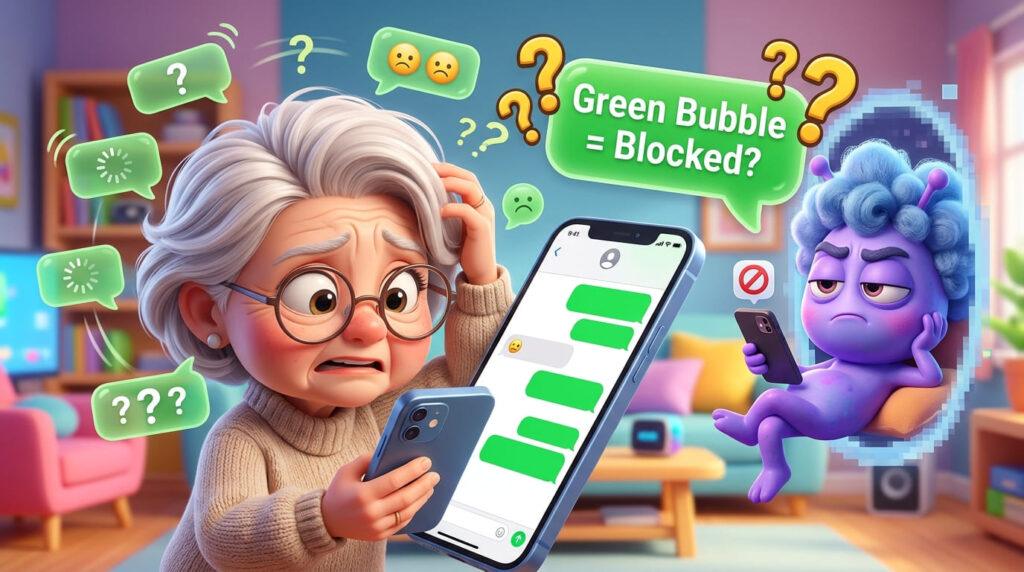
Let’s address the elephant in the room directly: No, a green text bubble does not automatically mean someone blocked you. In fact, in 95% of cases, it is purely a network or device issue.
However, because blocking does disrupt the iMessage network, it is one potential explanation. If you suspect you have been blocked, do not rely on the bubble color alone. Look for this specific combination of clues:
The “Am I Blocked?” Verification Checklist
| Status Indicator | Normal Behavior | Potential Block Behavior |
|---|---|---|
| Bubble Color | Blue (if texting another iPhone) | Switches suddenly from Blue to Green |
| Delivery Receipt | Says “Delivered” or “Read” underneath | Blank. No “Delivered” text appears at all |
| Phone Calls | Rings multiple times before voicemail | Immediate cutoff. Rings exactly once (or half a ring) then goes straight to voicemail |
| Automated Responses | None, unless driving focus is on | None |
| FaceTime | Connects and rings normally | Rings endlessly on your end, but never connects |
The Golden Rule of Blocking: The biggest giveaway is the missing “Delivered” receipt. When you send a green SMS to an Android user, or to someone with bad reception, it usually just sends quietly. But if you send a message to an iPhone user who has blocked you, the bubble will turn green AND the space underneath it will remain completely empty. If you combine that blank space with an immediate trip to voicemail when calling, it is highly likely you have been blocked.
Step-by-Step Guide: How to Fix Green Messages
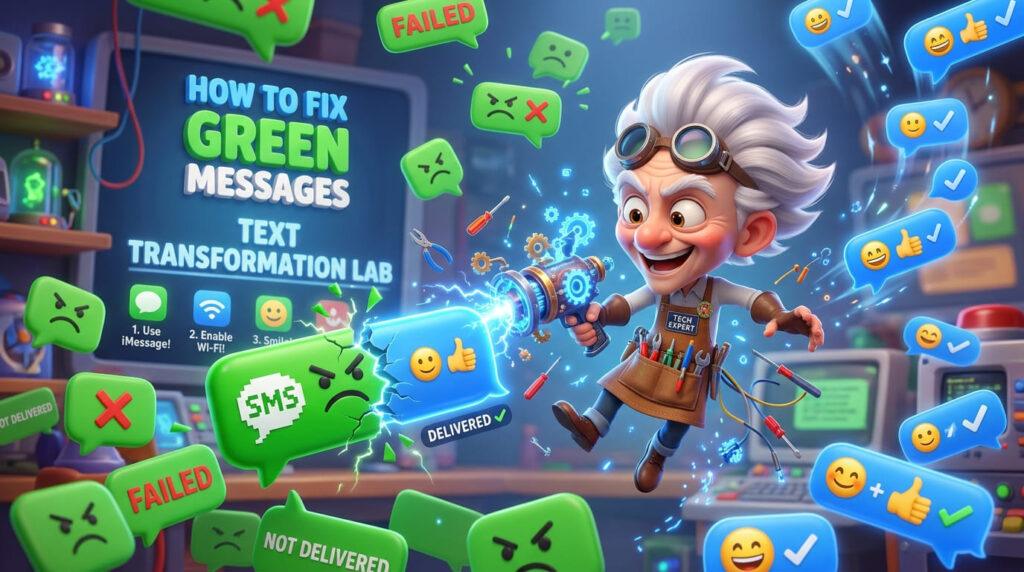
If you know for a fact that your friend has an iPhone, they haven’t blocked you, and you want your high-quality media and read receipts back, follow these structured troubleshooting steps.
Step 1: Force a Connection Refresh (The Airplane Mode Trick)
Often, your iPhone just needs to reconnect to the network towers to realize iMessage is available.
- Swipe down from the top-right corner of your screen to open the Control Center.
- Tap the Airplane Mode icon (the airplane) to turn it on.
- Wait roughly 10 to 15 seconds.
- Tap the icon again to disable Airplane Mode. Let your Wi-Fi and cellular bars reconnect completely, then try sending your text again.
Step 2: Verify Your iMessage Settings
Make sure the protocol hasn’t been turned off accidentally.
- Open your iPhone Settings app.
- Scroll down and tap on Messages.
- Look at the toggle next to iMessage. If it is grey, tap it so it turns Green (ON).
- If it is already on, toggle it OFF, wait 30 seconds, and toggle it back ON. This forces your device to re-register your phone number with Apple’s servers.
text[Settings] ➔ [Messages] ➔ [Toggle iMessage OFF] ➔ Wait 30 Sec ➔ [Toggle iMessage ON]Step 3: Check Your “Send & Receive” Addresses
Sometimes your phone gets confused between your email (Apple ID) and your actual phone number.
- Go to Settings > Messages.
- Tap on Send & Receive.
- Ensure there is a checkmark directly next to your phone number under both the “You can receive iMessages to and reply from” and “Start new conversations from” sections. If only your email is checked, texts to phone numbers might default to SMS.
Step 4: Check Apple’s System Status
Don’t waste time fixing your phone if the problem is on Apple’s end.
- Open your web browser and search for “Apple System Status page.”
- Look for the iMessage listing.
- If you see a green circle, the servers are fine. If you see a yellow diamond or red triangle, Apple is experiencing an outage, and you simply have to wait until they fix it.
Step 5: Restart Your iPhone
It is a cliché for a reason—restarting clears out temporary cache glitches that prevent background network protocols from functioning properly. Hold down the Volume Up button and the Power button, slide to power off, and turn the device back on.
Real-Life Chat Scenarios Explained
To help humanize these technical concepts, here is a look at how these situations typically play out in real-world conversations, along with what is happening behind the scenes.
Scenario A: The Sudden Commute Drop
- You: “Hey, are we still meeting at 6 PM?” (Bubble is Blue)
- You: “Wait, let me send you the address.” (Bubble turns Green)
- Friend: “Got it! Sorry, I was on the subway, lost my data connection for a minute.”
What Happened: As your friend descended underground, their iPhone disconnected from the internet. When you sent the second message, Apple’s server couldn’t locate their device, so your phone utilized the “Send as SMS” fallback feature to make sure the address still reached them via basic cellular towers.
Scenario B: The Blurry Photo Disaster
- You: (Sends a beautiful, crisp photo of a sunset—Bubble is Green)
- Friend: “Why does that photo look like it was taken on a potato? It’s so blurry!”
- You: “Ugh, my Wi-Fi is off and it sent as an MMS.”
What Happened: MMS messaging has incredibly strict file size limits (usually around 1MB to 2MB depending on the carrier). Because iMessage wasn’t available, your iPhone aggressively compressed the high-resolution image to fit through the carrier’s outdated MMS pipes.
Scenario C: The Group Chat Hijack
- You: “Hey team, great job today!” (Entire group chat turns Green)
- You: “Wait, why did our chat stop being blue? Where did the reactions go?”
- Friend: “Oh, I added David to the group. He has a Samsung.”
What Happened: Standard iMessage group chats require 100% Apple hardware participation. The moment a single non-Apple device is introduced to the thread, iOS forces the entire room into an SMS/MMS group text so the new participant can read and reply to the messages.
The Evolution: iOS 18, RCS, and the Green Bubble
If you are reading this in late 2024 or beyond, the world of green bubbles has undergone a massive, revolutionary upgrade thanks to Apple’s adoption of RCS (Rich Communication Services) in iOS 18.
What is RCS?
RCS is the modern replacement for traditional SMS/MMS. It is a next-generation protocol developed by the GSMA (and championed heavily by Google).
How Does This Change the Green Bubble?
Apple officially integrated RCS into the iPhone messaging app. Here is what you need to know about how this impacts your texts:
- The Color Stays Green: Apple confirmed that messages sent to Android users will still remain green. Blue bubbles remain entirely exclusive to iMessage.
- The Features Get Dramatically Better: Even though the bubble is green, if the text says “Text Message • RCS” in the text field, you will now get high-end features when texting Android users, including:
- High-resolution photo and video sharing (no more blurry MMS).
- Typing indicators between iPhone and Android.
- Read and delivered receipts.
- Much better reliability over Wi-Fi.
Summary: Green bubbles used to mean a degraded, frustrating texting experience. Thanks to RCS, a green bubble now simply means you are communicating across platforms, but the quality of the conversation remains modern and highly functional.
When to Embrace Green Messages (Pros & Cons)
Green text bubbles get a bad reputation, but they are actually incredibly robust and reliable in specific scenarios. Here is a quick breakdown of when you should appreciate SMS, and when you should avoid it.
| Scenario | Use iMessage (Blue) | Use SMS/MMS (Green) | Why? |
|---|---|---|---|
| Remote Camping / Poor Signal | ❌ | ✅ | SMS requires very little signal to push through; data requires a stronger connection. |
| Sending Sensitive Data (Passwords) | ✅ | ❌ | iMessage is end-to-end encrypted. SMS is exposed to carrier interception. |
| International Texting | ✅ | ❌ | iMessage is free over Wi-Fi anywhere in the world. International SMS can result in massive carrier roaming fees. |
| Texting Automated Systems (Bots/Alerts) | ❌ | ✅ | Bank alerts, appointment confirmations, and delivery updates rely exclusively on SMS infrastructure. |
| Sharing Media (Without RCS) | ✅ | ❌ | iMessage preserves full 4K video and raw photo quality. |
Frequently Asked Questions (FAQs)
Why are my texts green to another iPhone user all of a sudden?
This usually indicates a temporary network drop on either your end or the recipient’s end. It can also mean the recipient’s phone is off, their iMessage server connection is lagging, or they recently deregistered their number from iMessage.
Do green text messages charge me money?
It depends entirely on your cellular plan. Most modern mobile plans include unlimited domestic SMS/MMS. However, if you are traveling internationally or texting an international number without an appropriate plan, sending green SMS messages can trigger expensive carrier fees. Blue iMessages are always free as long as you are connected to Wi-Fi.
Can I force my iPhone to only send blue messages?
Yes, but with a caveat. If you go to Settings > Messages and turn OFF the “Send as SMS” toggle, your phone will never convert a failed iMessage into a green text. However, if you lose internet connection, your messages will simply sit there as “Not Delivered” until you find Wi-Fi or data again.
Why does my green message say “Sent as Text Message” instead of “Delivered”?
Standard SMS carriers do not universally support modern push-receipt notifications. When your iPhone sends an SMS, it only confirms that the text successfully left your device and reached the carrier tower. It cannot guarantee when the recipient’s phone actually downloads the text.
Does a green message mean my phone has a virus?
Absolutely not. The green/blue color scheme is a hardcoded system feature designed entirely to show you which network routing protocol (Carrier vs. Internet) is currently handling your conversation. It is entirely safe.
Conclusion
The next time you find yourself typing “why is my iMessage green” into a search bar, take a deep breath. The green bubble is not an inherent sign of rejection, nor does it mean your expensive smartphone is breaking down.
It is simply your iPhone working exactly as intended—acting as a smart, flexible communicator that prioritizes getting your message delivered, whether through Apple’s secure private cloud or via universal cellular towers. By keeping your device updated, monitoring your internet connections, and understanding the incredible improvements brought by RCS, you can navigate the colorful world of smartphone messaging with total confidence.